Serial and ethernet connection
The system offers two authorization methods: via the serial console (UART RS232) or via Ethernet (SSH).
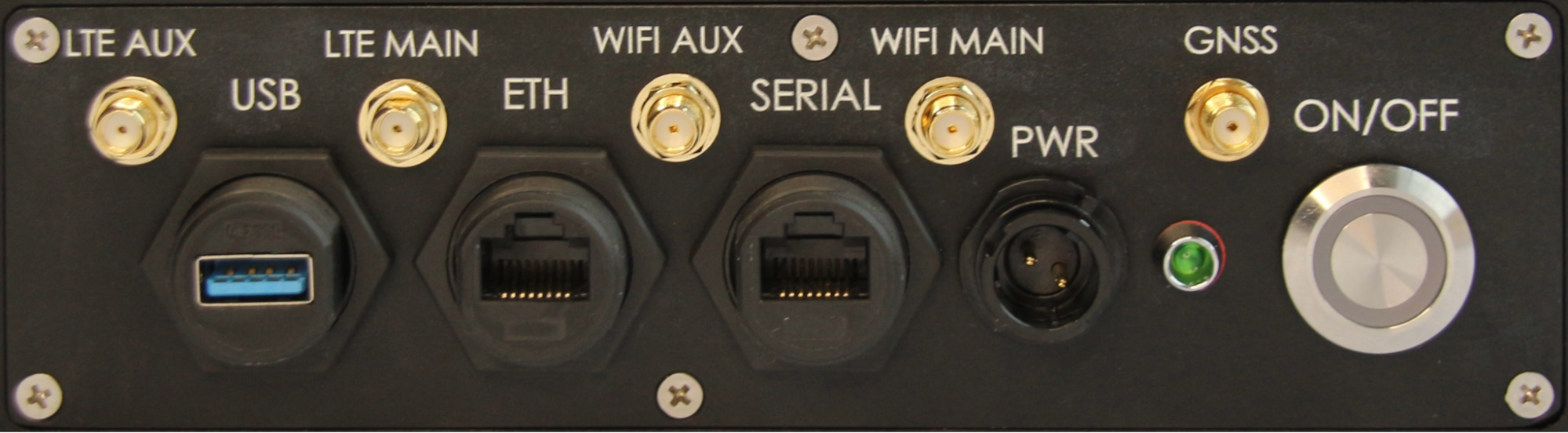
Serial connection (UART RS232)
A USB-to-Serial adapter and a PC are required. The following adapter configurations are available:
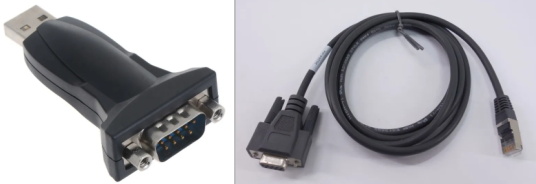
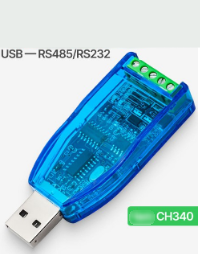
Tested adapter options:
- MOXA UPort 1100
- UGREEN USB to RS-232 DB9 Serial Adapter Cable
Connection instructions:
Connect the adapter to the cable according to the interface pinout. When using a pre-made adapter cable, ensure that the interface connections match the pinout diagram.
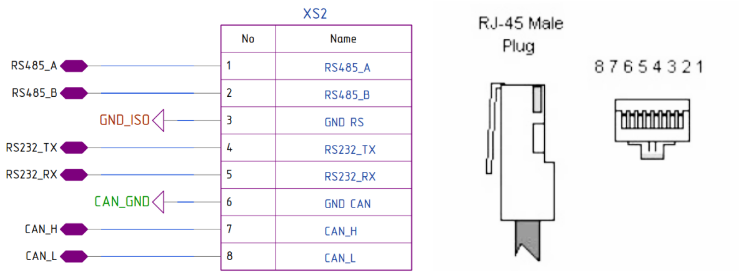
Install a program for connecting to a serial console on your PC, such as minicom for GNU/Linux or PuTTY for Windows.
Connect the adapter to the USB port on your PC and the SERIAL port on the 3DV-EdgeAI-32 device.
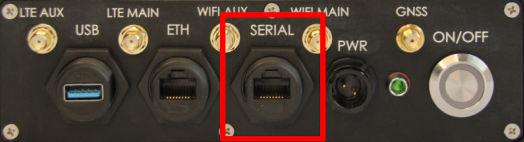
Check the adapter connection using the command:
sudo dmesg | grep ttyExpected output:
usb 3-5: ch341-uart converter now attached to ttyUSB0where ttyUSB0 is the device name assigned by the system (may be different).
Connect to the serial console using the login and password: admin\admin or linaro\linaro
Connection parameters:
- Device — according to the system-assigned name (for the example output above, /dev/ttyUSB0).
- Baud rate — 115200
Example command for minicom:
sudo minicom D /dev/ttyUSB0 -b 115200
Ethernet connection
Requires an RG-45 cable (patch cord) and a PC equipped with a network card with an RG-45 Ethernet connector.
Connection instructions:
Connect the cable to the Ethernet connectors on the PC and the Ethernet connector on 3DV-EdgeAI-32.
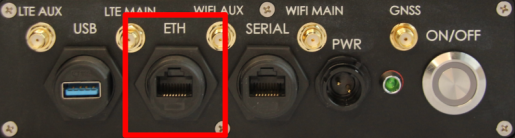
By default, 3DV-EdgeAI-32 is configured with a static IP address of 192.168.0.232. To connect to the device, configure the PC's wired network connection so that it is on the same subnet as 3DV-EdgeAI-32.
Parameters:
- IP - 192.168.0.100 (instead of 100, you can use any number in the range 2–254, except 232);
- Subnet mask - 255.255.255.0 or /24
Example settings for Ubuntu Linux:
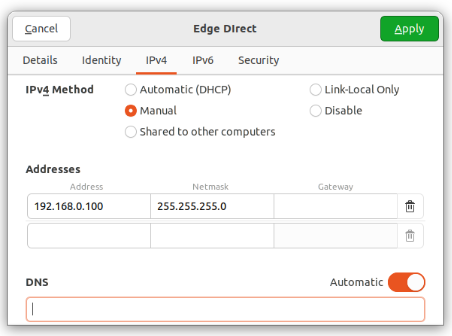
Connect to the device using SSH.
Parameters used:
- Port: 22
- Username and password: admin\admin or linaro\linaro
- Command example:
ssh linaro@192.168.0.232If you can't find the device at 192.168.0.232, use a network mapping tool such as Nmap ("Network Mapper") to locate the device.
Configuring a network connection
Log in with the username and password:
- admin\admin
- linaro\linaro
To configure the network connection, edit the Netplan configuration file: /etc/netplan/01-netcfg.yaml according to the documentation and your network configuration.
For an example configuration for setting up a local network connection with a static IP address, see IP Address Configuration.
After making changes, apply the new configuration using the command:
sudo netplan apply