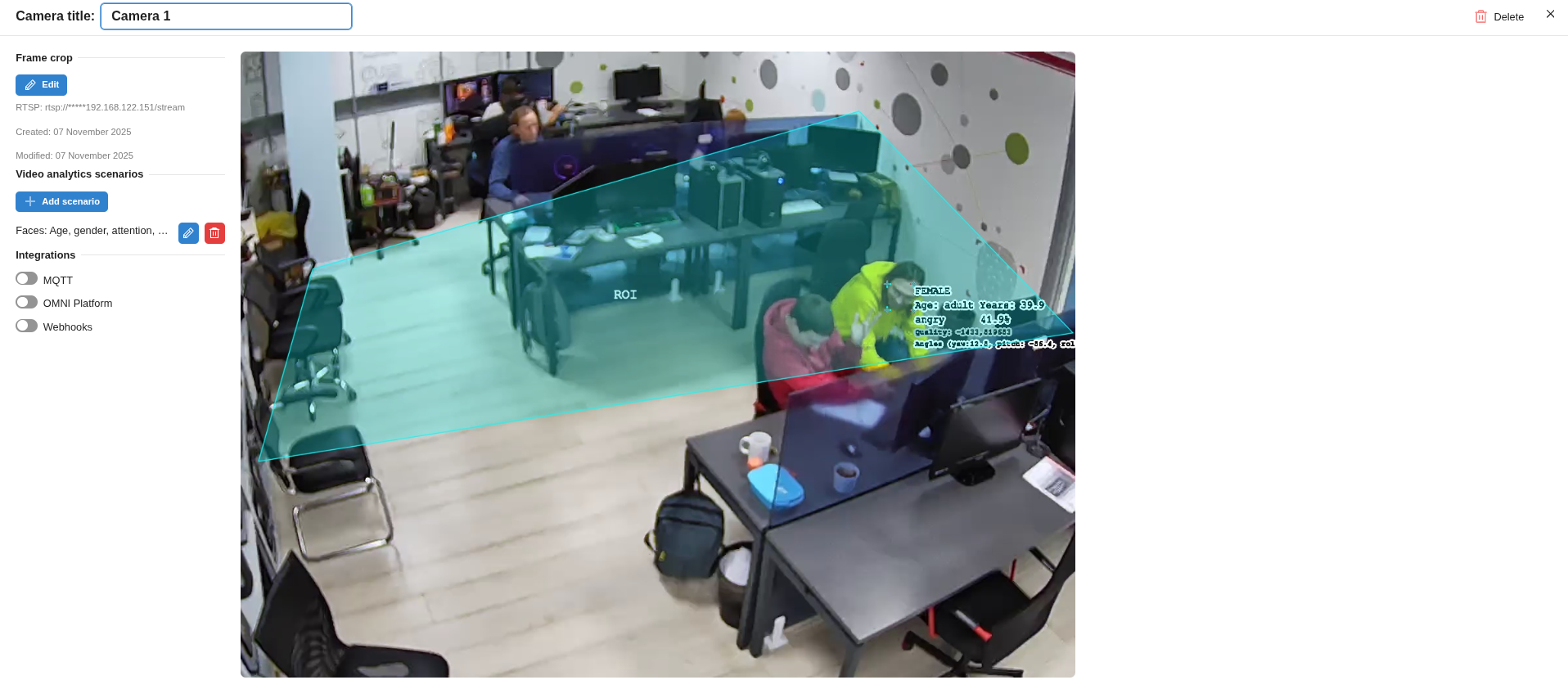
Frame processing zones
In OMNI Agent, you can flexibly configure frame processing zones for each surveillance camera or processed video file.
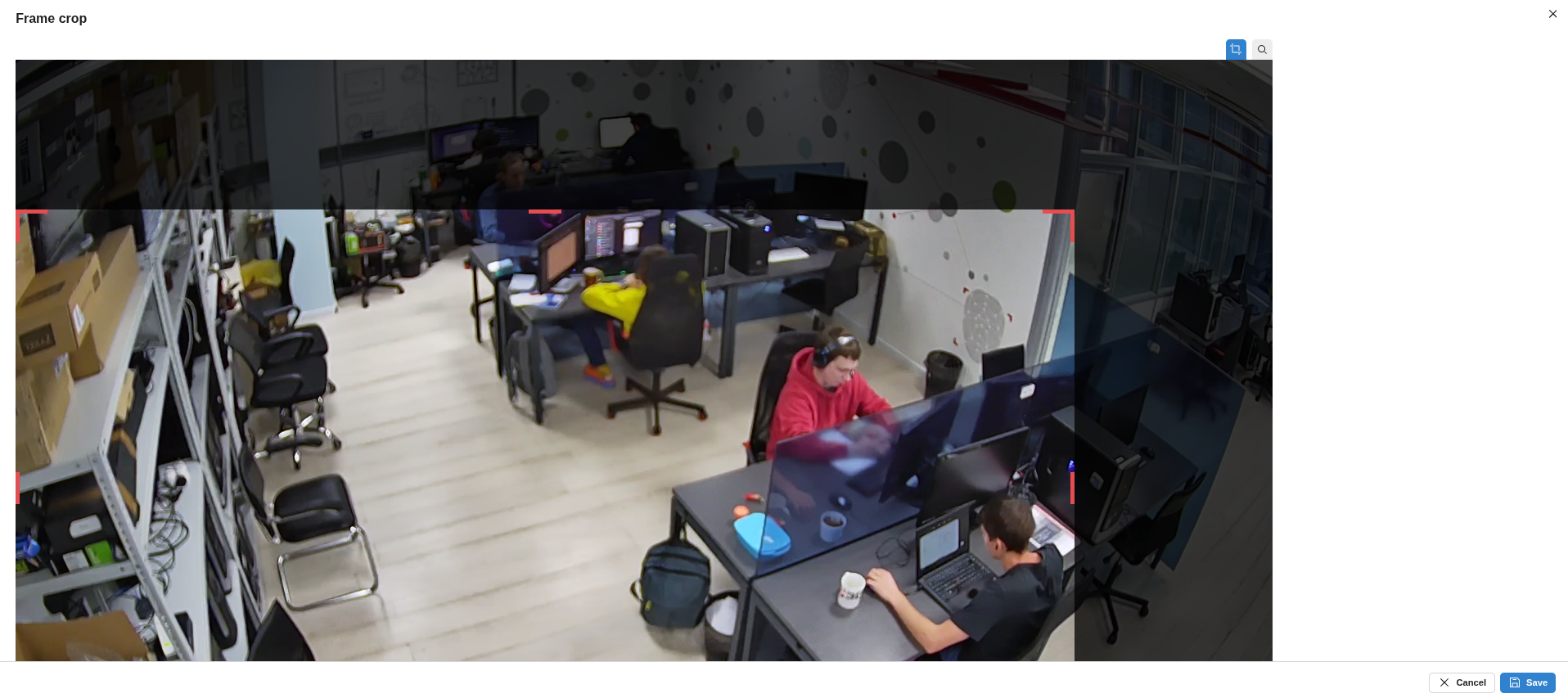
Frame cropping
Defines the visible area of the image that is sent to the OMNI Platform server and used for video analytics tasks. This allows you to exclude unnecessary areas (e.g., walls, windows, or inactive regions), reducing system load.
To configure frame cropping:
Select the required camera.
Click the cropping icon in the upper-right corner of the preview and choose a predefined cropping option optimized for face or body detection.
Alternatively, manually adjust the area by dragging the red corner markers in the preview.
Afterward, save your settings.
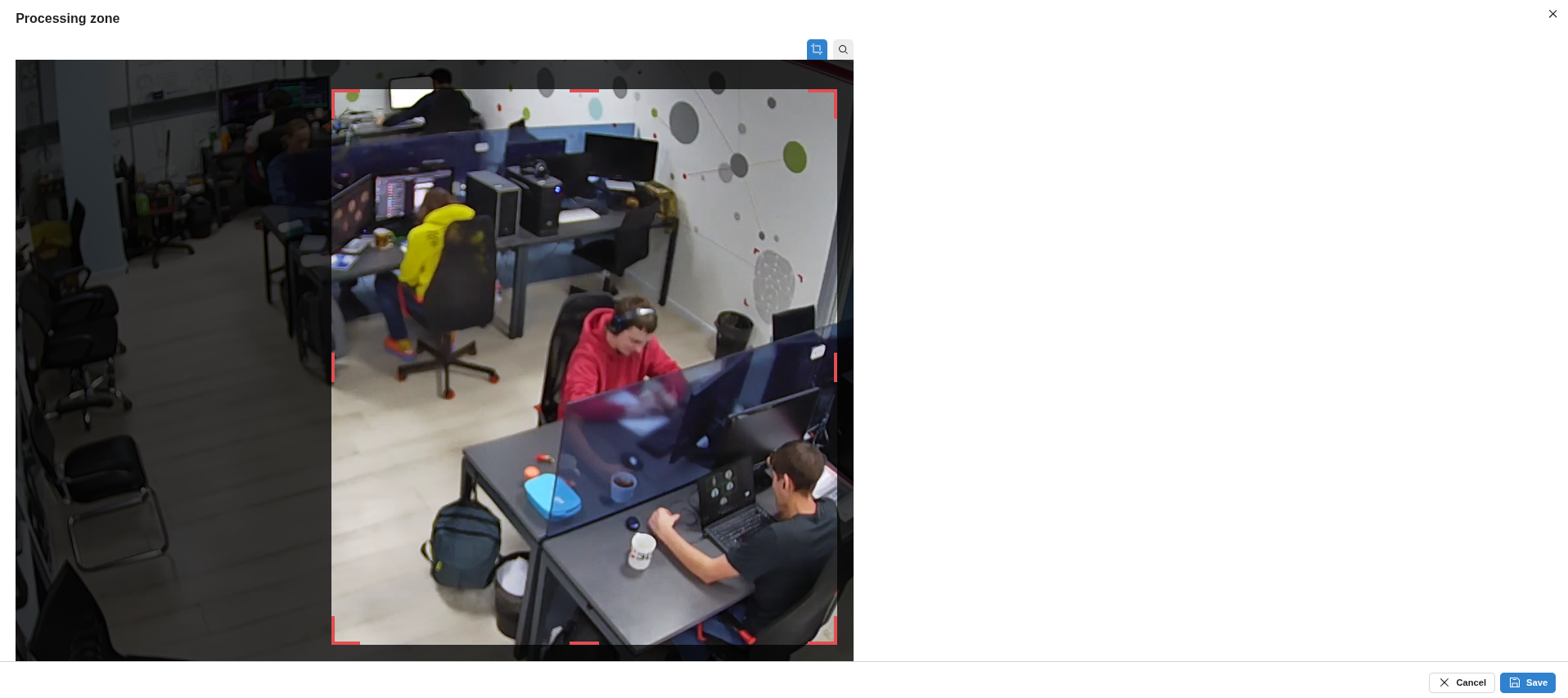
Video analytics zone
Defines the area of the frame where video analytics scenarios (such as counting, detection, or tracking) are applied.
Region of interest (ROI)
The area within the video analytics zone that triggers events when objects appear in it.