System parameters
You can change the configuration settings of the OMNI Agent through the Settings section at the top of the web interface.
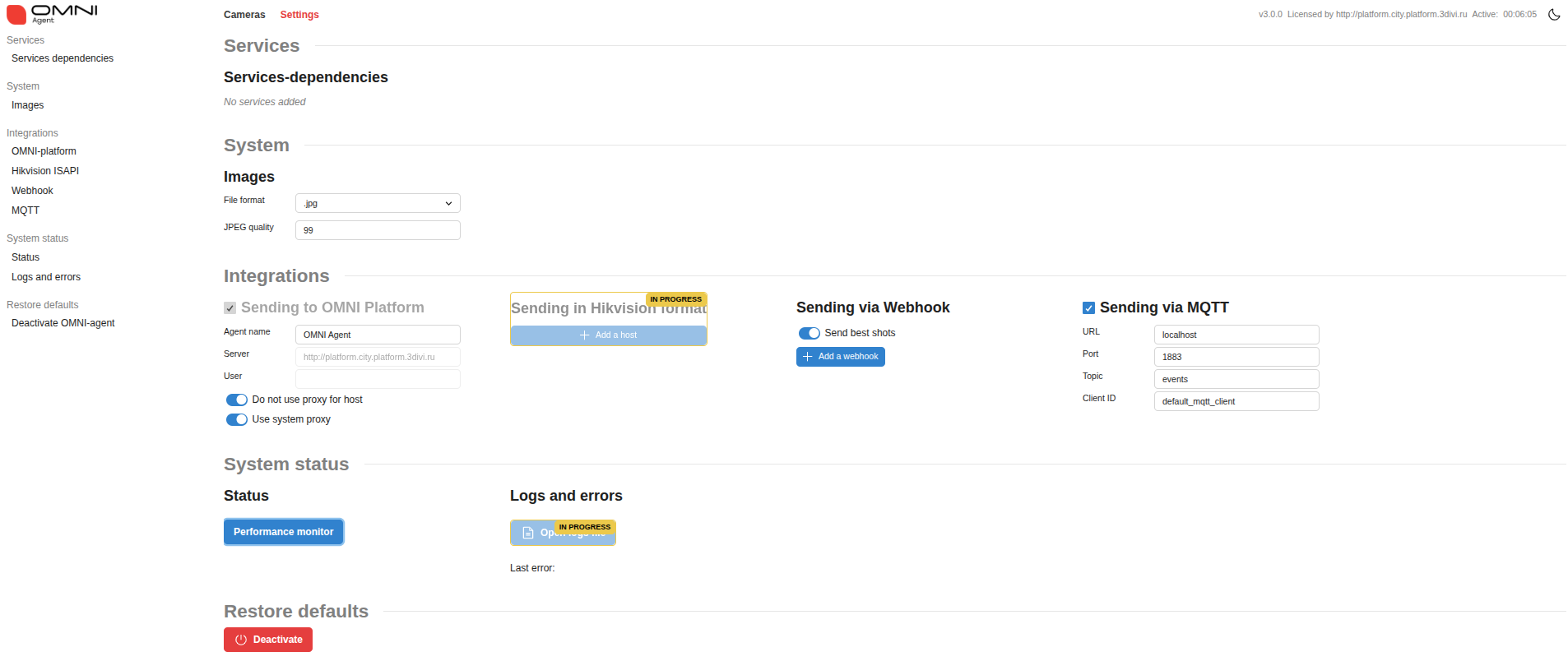
Image transfer parameters
In the settings, you can:
Choose the format of saved images — PNG or JPG
Set the quality threshold (default — 99): frames with lower quality will not be processed
Proxy server configuration
If your Internet access is provided through a proxy server, you’ll also need to configure it for installing and using OMNI Agent.
To enable proxy usage:
Click the Settings icon in the OMNI Agent web interface.
Choose System or Custom proxy mode in the opened tab.
If using a custom proxy, enter its address in the provided field.
Click Save to apply changes.
Logging
You can view logs in the file logfile_*.log located in the log folder. To change the logging level, open the configuration file log_params.json and set the sev_level(string) parameter.
Available logging levels: TRACE, DEBUG, INFO, WARNING, ERROR, FATAL (listed in order of increasing severity).
System status
System status can be viewed via the Performance Monitor. It displays individual module load, uptime and idle time, as well as average request processing time. All metrics are presented as graphs.